

Inbound
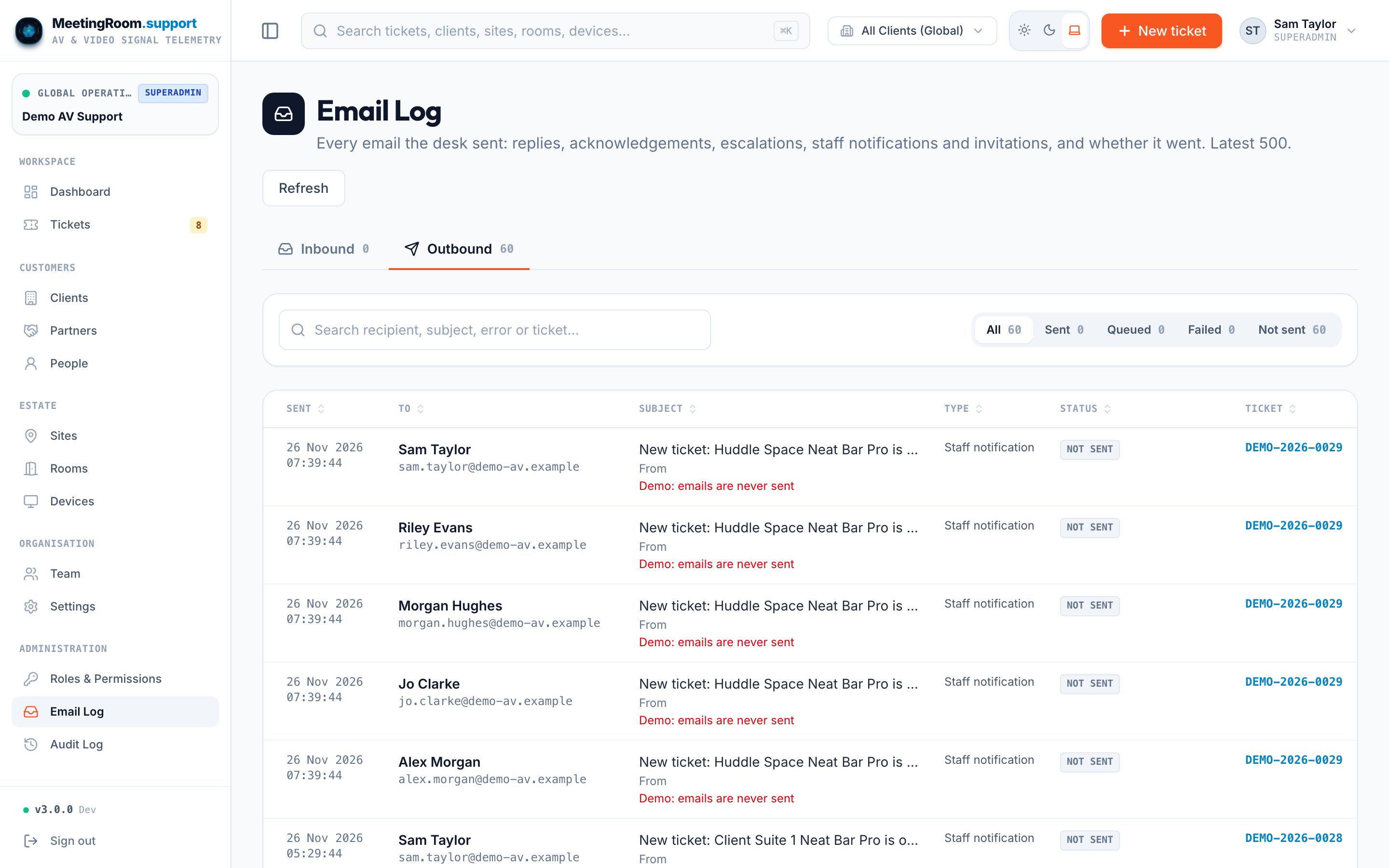
Every email received at the support address, with its sender, the sender check result, subject, outcome, the ticket it went to and whether it was acknowledged. Filter by Queued, New ticket, Reply, Ignored or Failed. Use it to answer “why didn’t my email become a ticket?”. The outcome explains, for example, whether the sender was matched to a client, or why the email was ignored. Hover over a sender check result to see the email’s authentication details.Outbound
Queued and failed emails
Nothing is lost when the email service has a problem:- An incoming email that can’t be handled straight away is kept as Queued and tried again.
- An outgoing email the email service doesn’t accept straight away is Queued and retried after 1 minute, 5 minutes, 30 minutes, 2 hours and 12 hours. Each row shows how many times it’s been tried and when it’s next due.
- After six tries it’s Failed. Retry tries it once more straight away.
The screenshot comes from the demo, which never sends email, so every outbound email shows Not sent.