

Setting a tag
Edit the user on Team or People and fill in Tag. Tags already in use are suggested as you type, so the same tag is spelt the same way each time. Keep it to 40 characters. Each person has one tag at most.Where tags show
-
Team and People have a Tag column. Pick a tag from All tags, or select one in the table, to list everyone who has it.
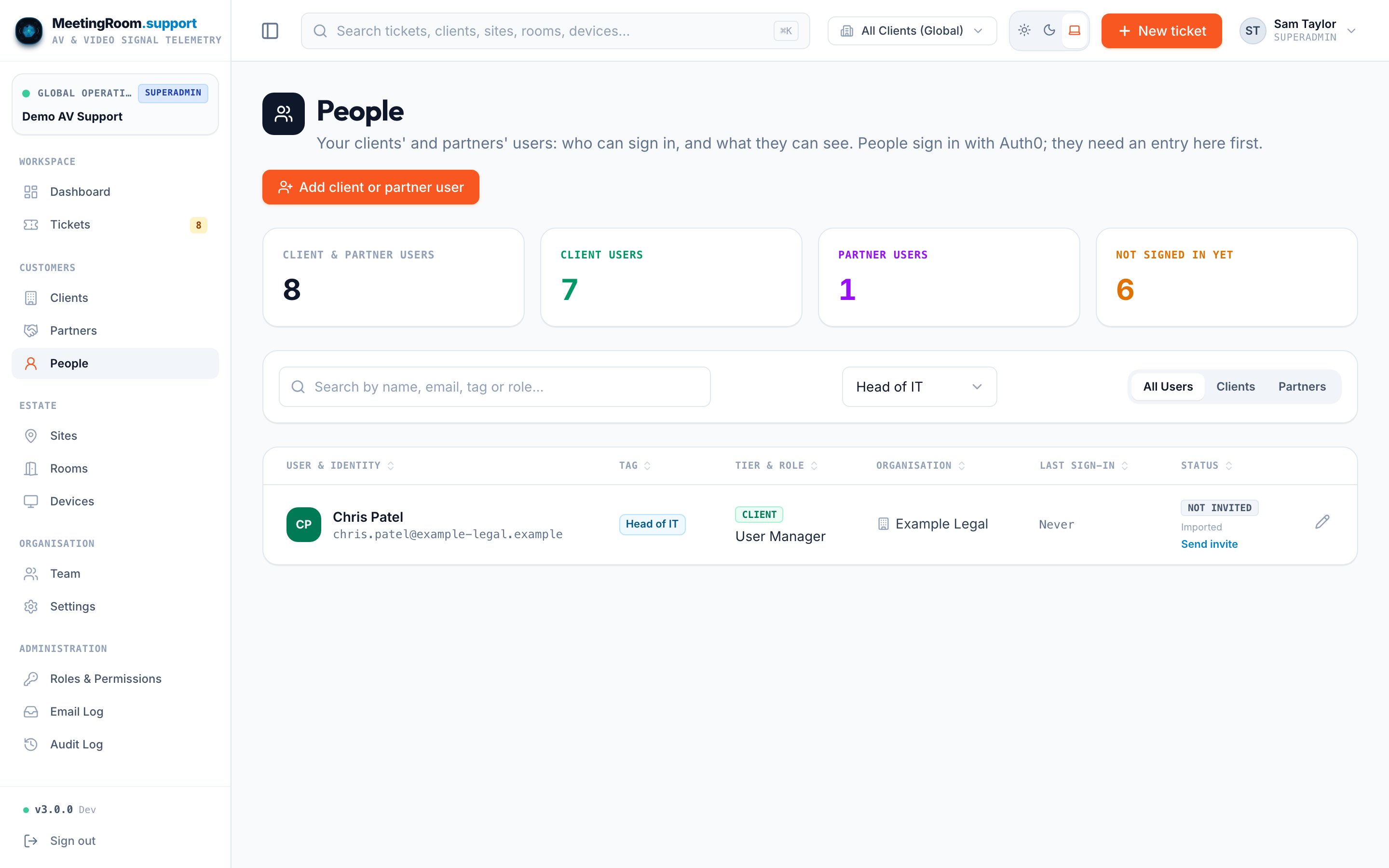
-
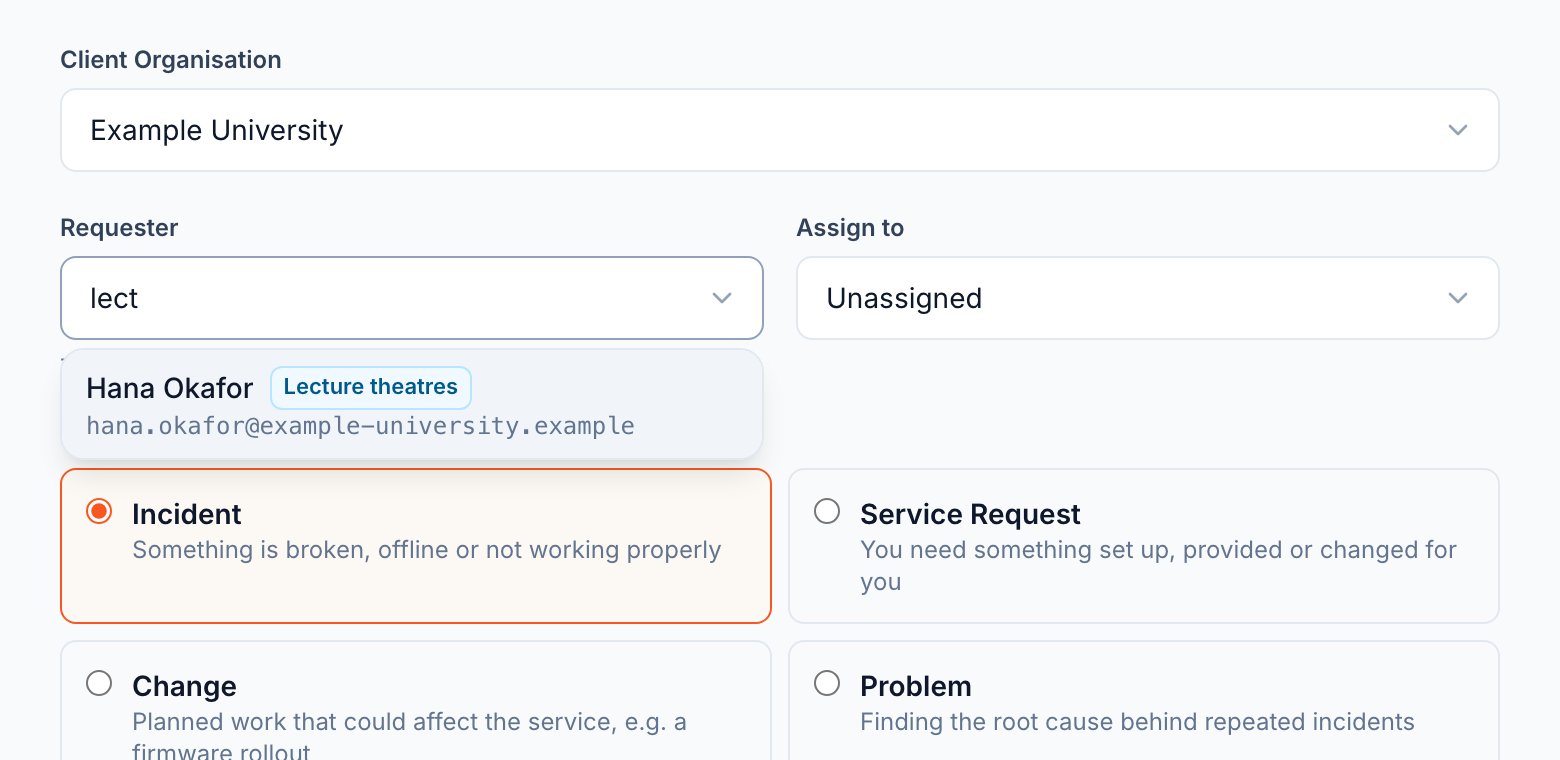
Choosing a user on a ticket, such as the requester on a new ticket or the people copied in on replies: type part of a name, email or tag. Typing lect finds everyone tagged Lecture theatres.
- The search box in the header finds people by name, email or tag, and opens them on Team or People.