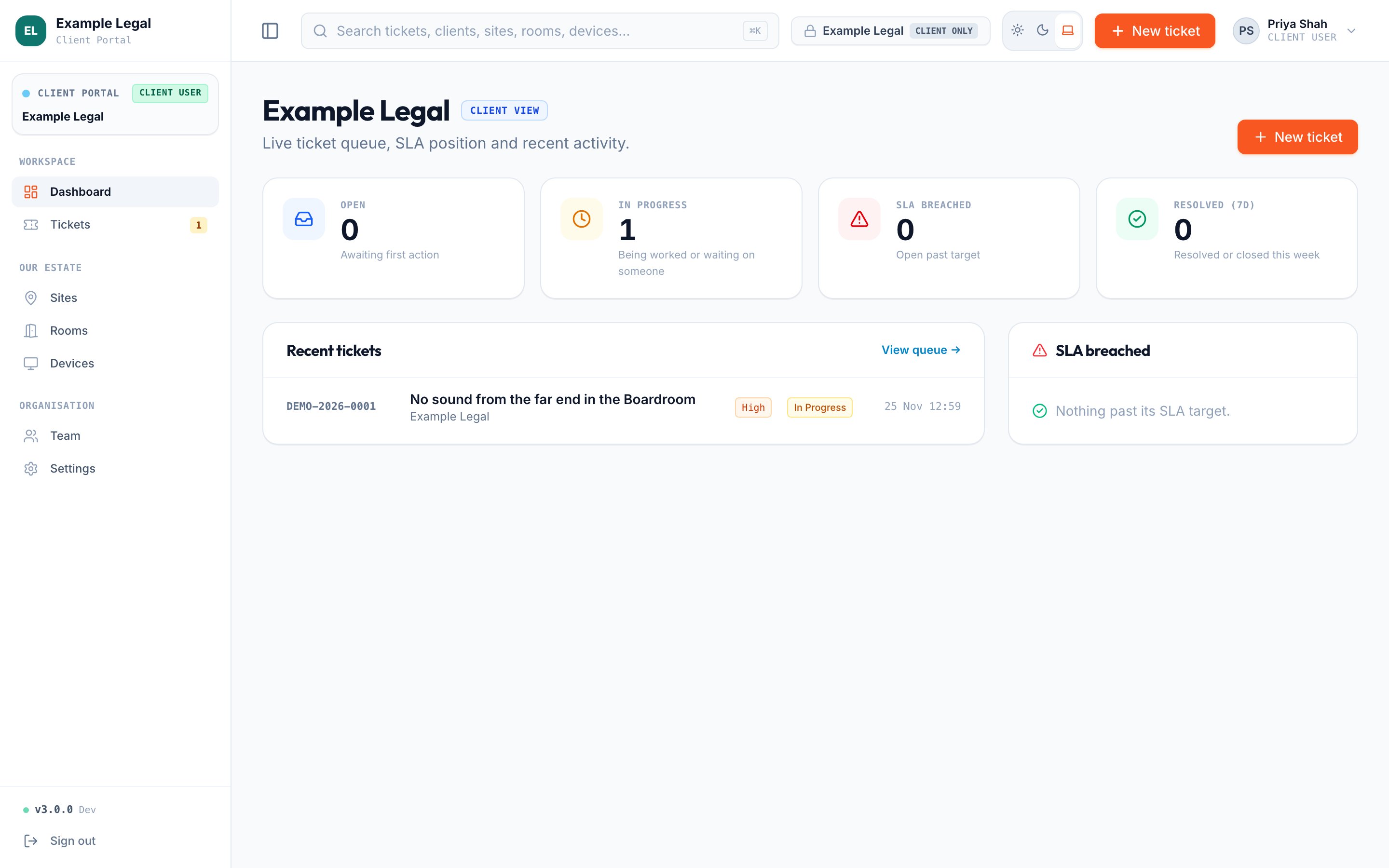
If you work at one of your AV support company’s clients, the portal is where you report faults with your meeting rooms, ask for things you need, and follow them through. The dashboard as a client user sees it, showing only their company's tickets

What you see

Your sidebar shows Dashboard and Tickets, your company’s Sites, Rooms and Devices under Our estate, and Team and Settings. The header shows your company with a Client only badge: you only ever see your own company’s information. By default you see the tickets you raised yourself. Your company’s User Manager sees all of your company’s tickets.

Raising a ticket

Select New ticket. Choose Incident if something is broken or not working properly, or Service Request if you need something set up, provided or changed. Pick the room and device if you can: it saves the engineer working it out. Choose the priority honestly: Critical means a room is down and something important depends on it. See Raising a ticket. You can also just email the support address. Your email becomes a ticket and you get an acknowledgement with the ticket number. See Tickets by email.

Following a ticket

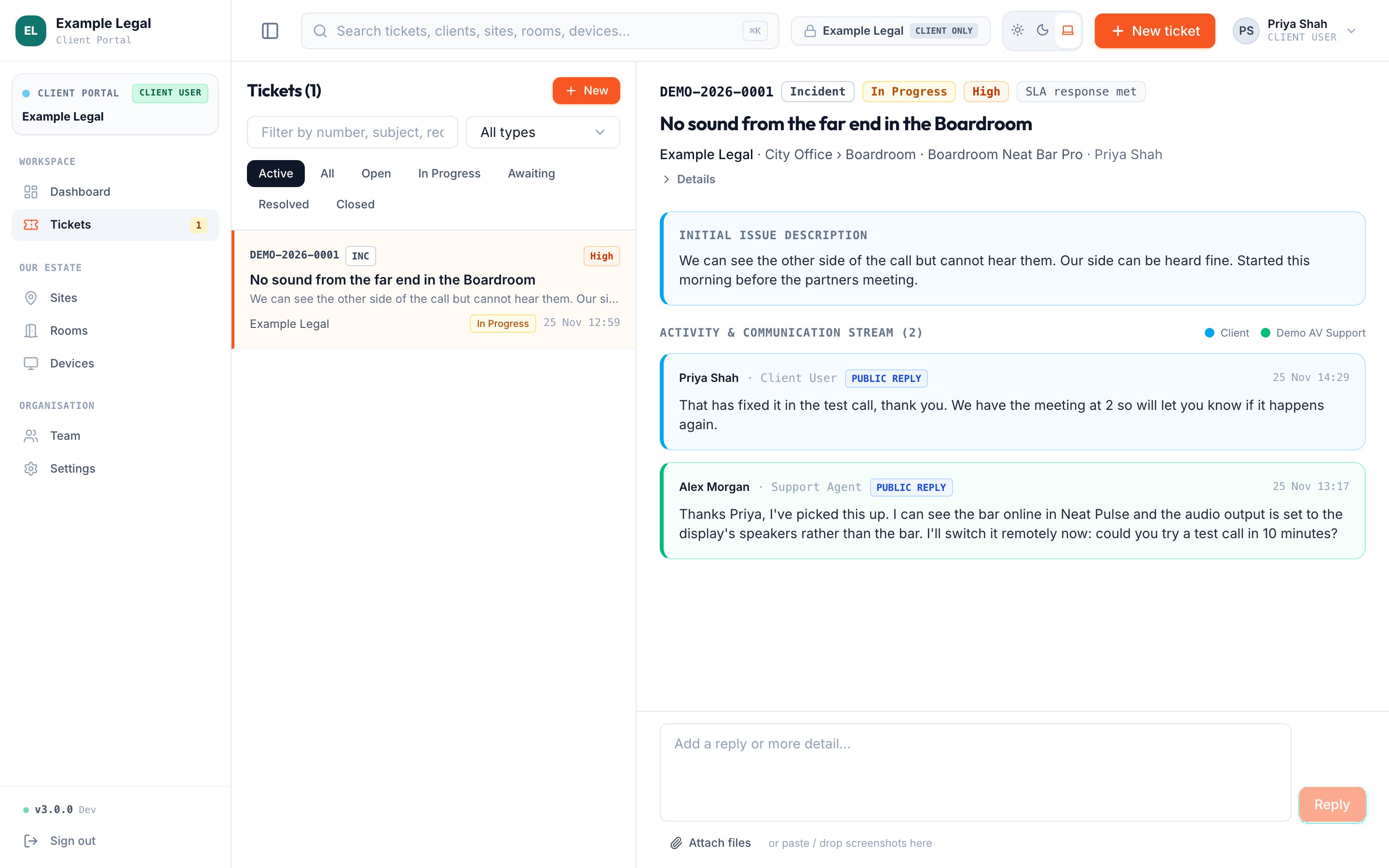
A ticket as the client sees it, with the support team's reply You see the description, every public reply, the status, and the ticket’s SLA targets. When the support team replies, you’re emailed too. Reply in the portal or to the email: either way it lands on the ticket, and a ticket waiting on you goes back to Open. The support team’s internal notes are never shown to you.

Your rooms and devices

The Sites, Rooms and Devices pages list your company’s kit. If your rooms’ devices are monitored, the Live column shows whether each is online right now. If your site’s contract includes onsite visits, the Sites page shows how many are left this year.

Managing your colleagues

If you’re your company’s User Manager, the Team page lists your colleagues. Add new starters and block leavers there yourself. See Team and users. A User Manager can also connect your company’s Neat Pulse, Poly Lens or Shure Cloud under Settings > Integrations, and put your devices in rooms. See Integrations.