

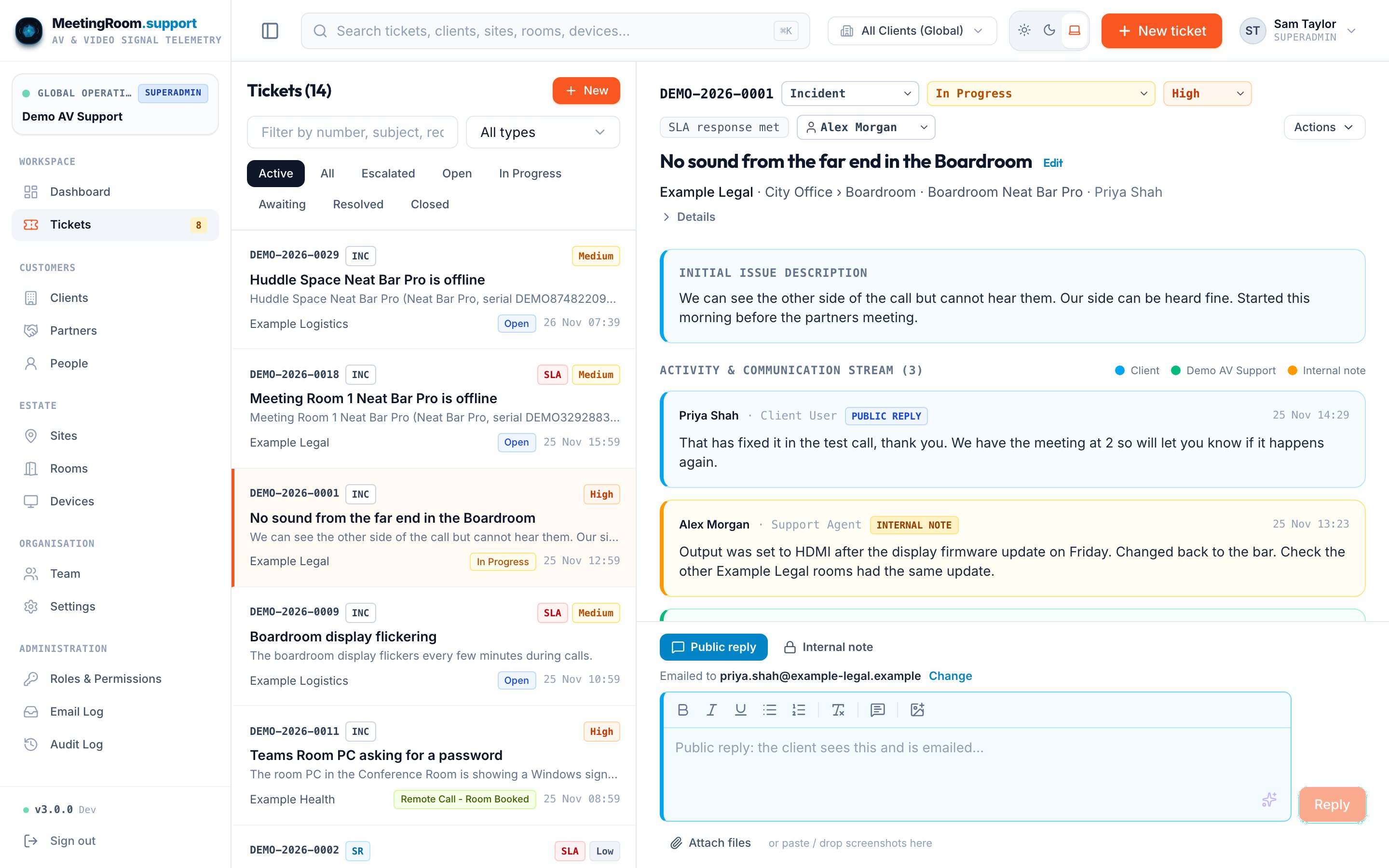
Public reply or internal note
The box only offers what your role allows. Client users can only write public replies. Partner Viewers can only write internal notes.
Reading the conversation
Each reply is coloured by who wrote it, with a key above the conversation:
Replies are shown newest first. To read them oldest first, choose Ticket history: Oldest first in the menu under your name. See Your settings.
A long description starts folded to a few lines, with Show full description. Earlier emails quoted at the bottom of a reply are tucked away under Show earlier messages.
Writing a reply
- Support staff get a formatting bar: bold, italic, underline, bulleted and numbered lists, canned responses and images.
- The box grows as you type.
- Ctrl + Enter (or Cmd + Enter on a Mac) sends.
Rewrite with AI
The sparkle button in the bottom corner of the box redrafts a support team member’s public reply: short, plain and professional, in British English, greeting the requester by first name and signed off from you. Only your draft and those two names are sent to the AI service. The rewrite replaces your draft for you to check and edit before sending, and the undo arrow beside the sparkle puts your own text back. It isn’t offered on internal notes or to client users. It only appears if your platform has it switched on.Drafts
What you type is saved as a draft as you go, so you can leave a ticket, or close the browser, and come back to it. Under the box you’ll see Draft saved with the time, and the queue marks the ticket DRAFT. Discard draft throws it away. If someone else on the support team is writing on the same ticket, the box tells you who and when they last typed, so you don’t both answer the customer. You never see their words, only that they’re writing.Attachments
Attach files, or paste or drop them into the box. Files can be up to 100 MB each, 10 at a time. The support team can also put an image in the text of a reply or note, with the image button on the formatting bar or by pasting a screenshot. It’s shrunk to a sensible size and appears where you put it, in the portal and in the email. Clients attach screenshots as files instead. Every file is checked for viruses before anyone can open it. Until the check is done (usually a few seconds) it shows Checking…. If a virus is found the file is removed, its name stays with Removed: virus found, and an internal note says who sent it.Who gets the email
The line above the box shows who a public reply will be emailed to, for example Emailed to priya.shah@example-legal.example. Select Change to:- divert the ticket to a different requester, such as from the receptionist who reported it to the site manager
- copy in up to 10 other addresses, who can then reply by email too