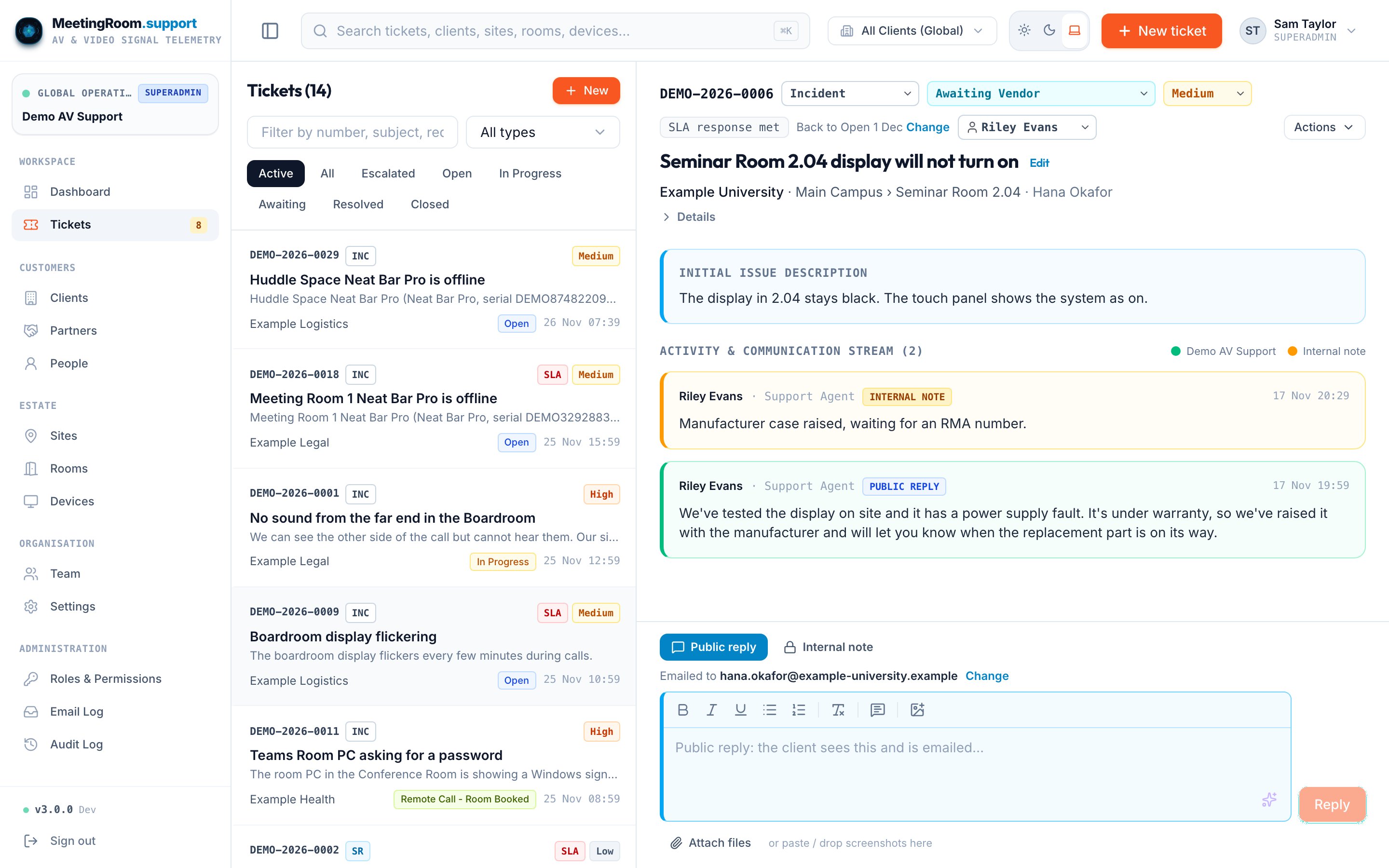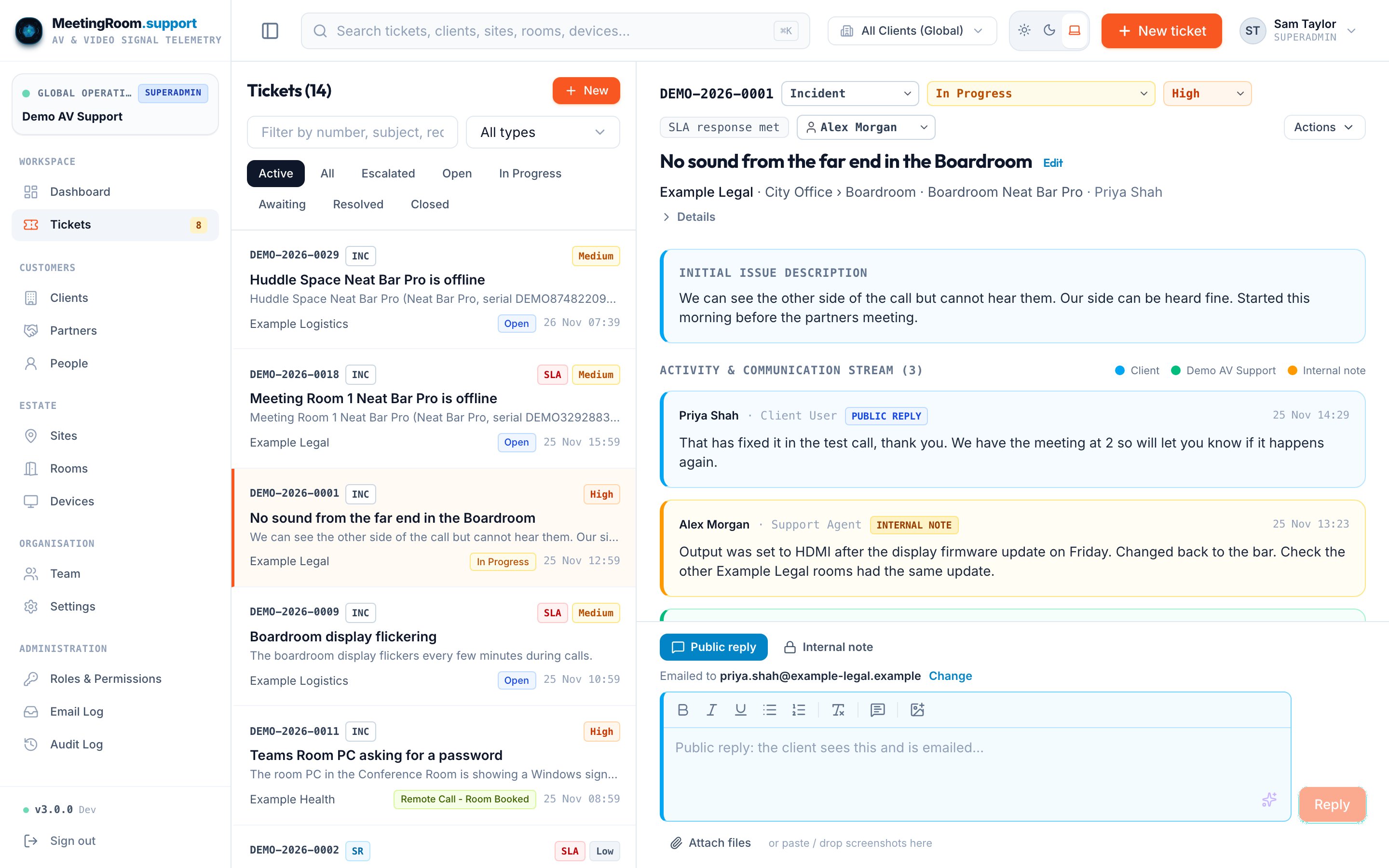
The top of a ticket
The first rows show the ticket’s type, status, priority, SLA position and who it’s assigned to. If your role can change one, it’s a drop-down: pick a new value and it’s saved straight away. Otherwise it’s a plain label. Under them is the subject, with Edit to change it (Enter saves, Escape cancels). The ticket number stays the same, so email replies still reach it. The line under the subject sums up where and who: client · site › room · device · requester.Actions
Less frequent actions are in the Actions menu at the end of the row: Invite to portal, Merge, Escalate and Delete. You only see the ones your role allows, and the menu doesn’t appear at all if you have none.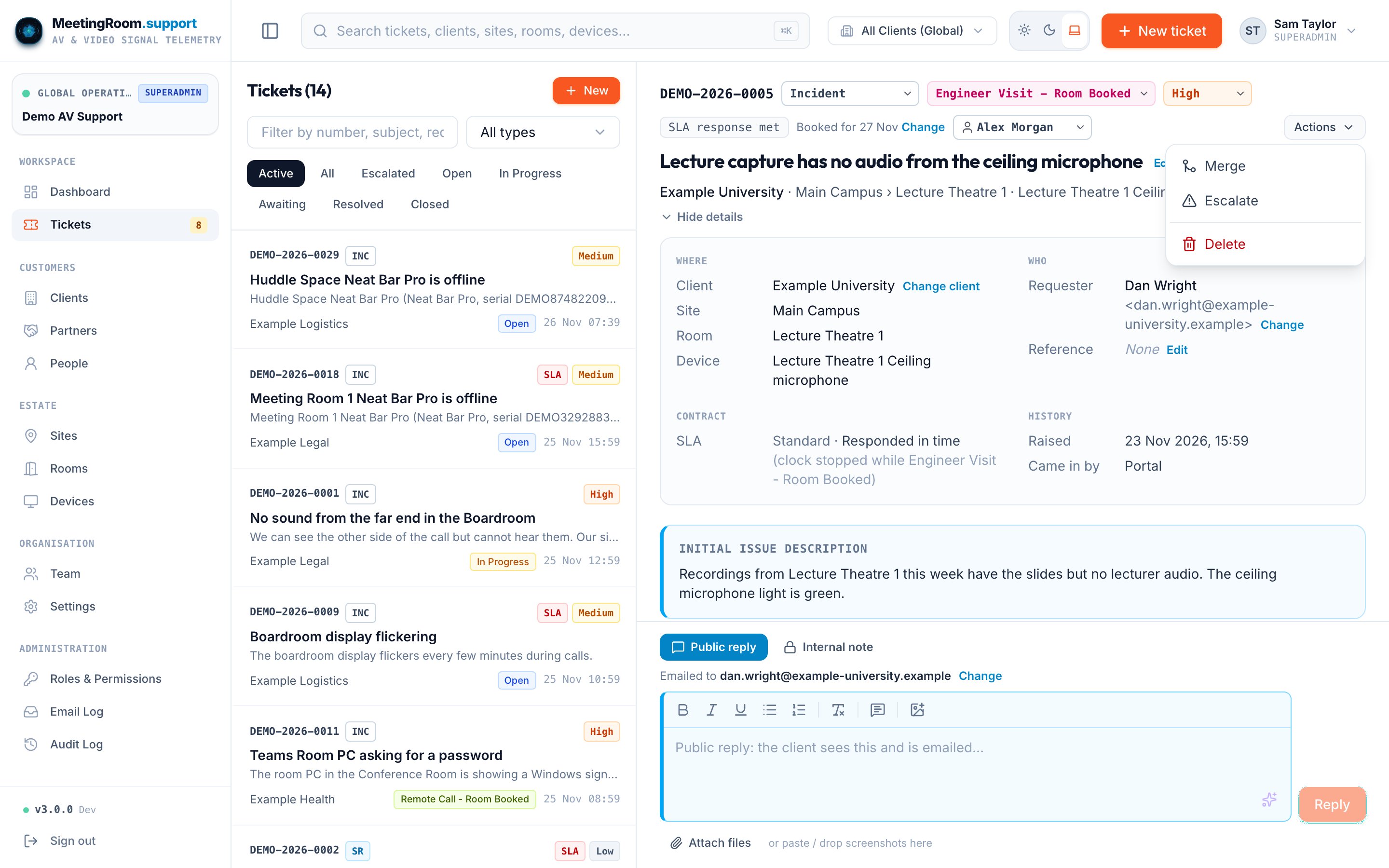
Details
Select Details under the subject to see everything else about the ticket. The portal remembers whether you left it open.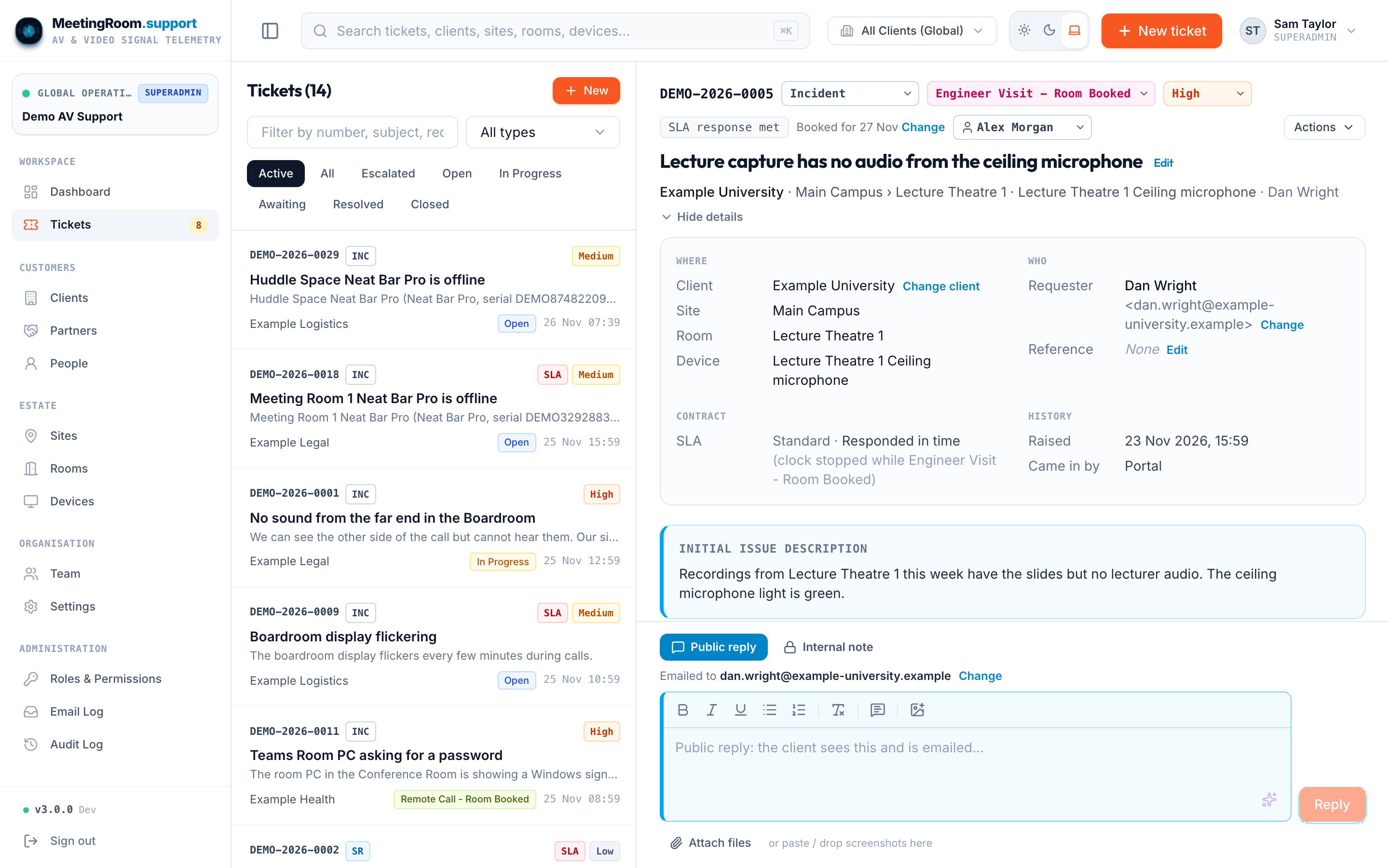
Type
Change the type from the drop-down at the top. Anyone who can edit tickets can switch between Incident and Service Request; only the support team can make a ticket a Change or Problem, or change one back. Changing the type works out the SLA targets again.Status
Choose a status from the status drop-down. See Ticket statuses for what each means. Replies move the status for you:- A public reply from the support team or a partner moves Open or In Progress to Awaiting Client.
- A reply from the customer moves Awaiting Client or Resolved back to Open.
Putting a ticket on hold
Choosing an Awaiting status, Parts in Transit, or one of the two Room Booked statuses asks for a return date: up to a year ahead, with quick picks from 3 days to 4 weeks. On that date the ticket goes back to Open by itself, with an internal note to say so.