

1
Sign in
Go to your organisation’s portal address, such as
acme.meetingroom.support, and sign in with Microsoft 365, Google Workspace or your email address. You need to have been added to the portal first. See Signing in.2
Look at the dashboard
The dashboard opens first. It shows how many tickets are open, in progress, past their SLA target and resolved this week, with the most recent tickets underneath. See Dashboard.
3
Open the ticket queue
Select Tickets in the sidebar. Pick a ticket on the left to see it on the right. See The ticket queue.
4
Raise a ticket
Select New ticket at the top of any page, choose what kind of ticket it is, describe the fault and choose the room and device if you know them. See Raising a ticket.
The screen
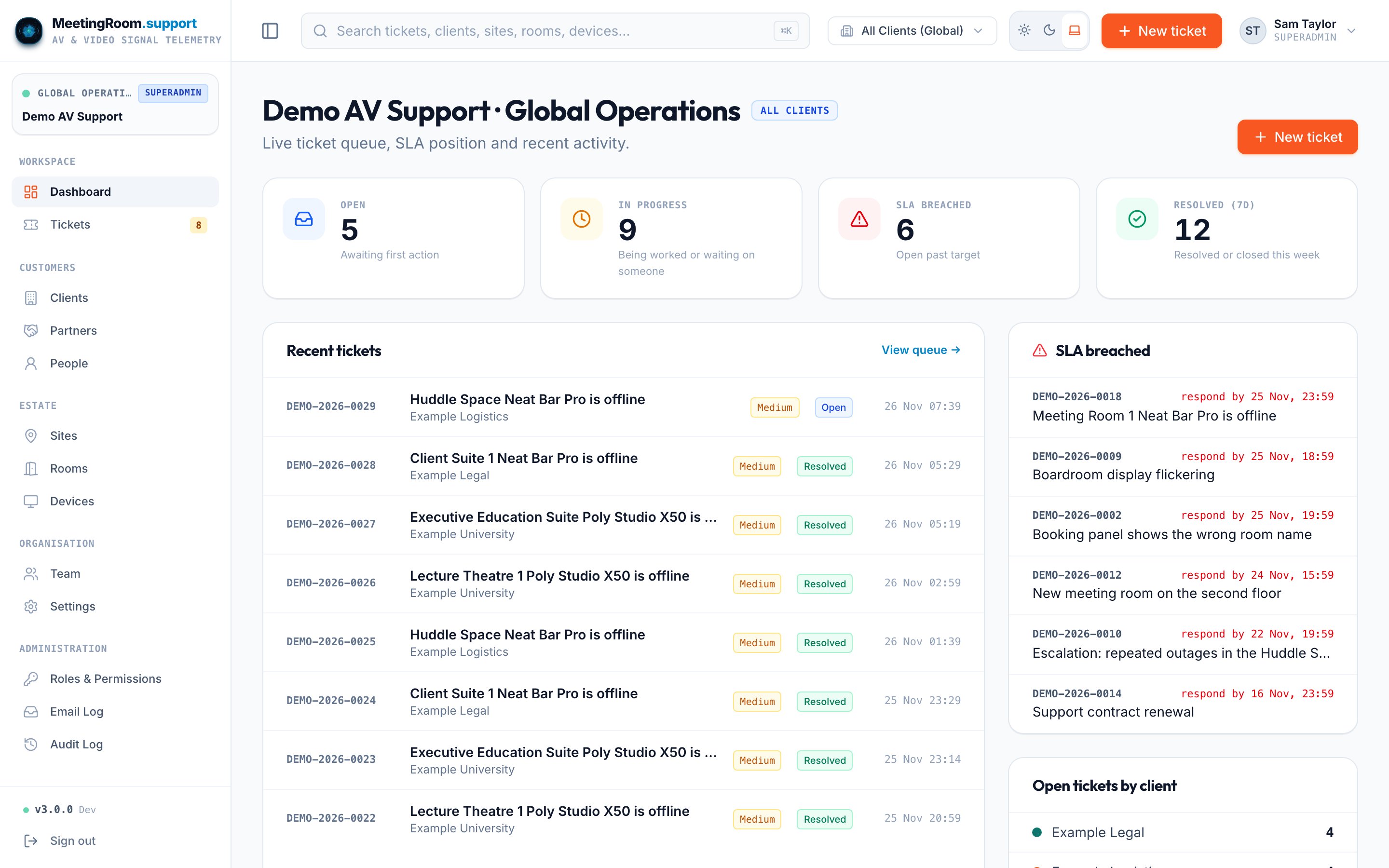
The sidebar collapses with the button to the left of the search box, which gives the ticket pages more room on a small screen.